Customizing your workspace
Name
Hover over the workspace's name (shown as "Untitled workspace" by default, in the top bar) to reveal an edit icon:
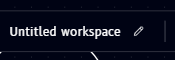
Click the name (or the edit icon) to rename it. It becomes an editable text field with confirm and cancel controls:
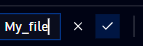
- Type the new name, then either:
- Click the checkmark (or press Enter) to confirm the new name
- Click the X (or press Escape) to cancel and keep the previous name
File / Edit / View dropdowns
Three menus in the top bar give you file management, editing, and view controls. A fourth, Help, is covered separately on the Help page.
File
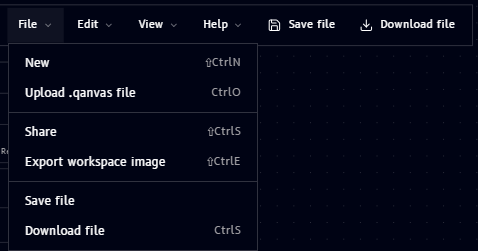
| Item | Shortcut | What it does |
|---|---|---|
| New | ⇧Ctrl N | Start a new, blank workspace |
| Upload .qanvas file | Ctrl O | Import a workspace from a .qanvas file |
| Share | ⇧Ctrl S | Share the workspace with others |
| Export workspace image | ⇧Ctrl E | Save the canvas as an image |
| Save file | - | Save the workspace |
| Download file | Ctrl S | Download the workspace file |
Note
Saving a workspace shows a confirmation toast and adds it to Assets:

See Assets for where saved files show up afterward.
Edit
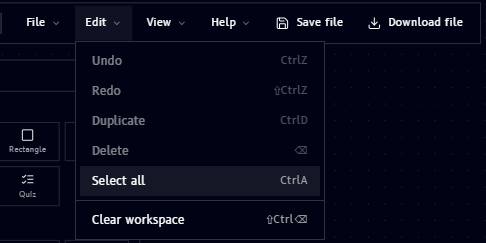
| Item | Shortcut | What it does |
|---|---|---|
| Undo | Ctrl Z | Undo the last action |
| Redo | ⇧Ctrl Z | Redo the last undone action |
| Duplicate | Ctrl D | Duplicate the selected item(s) |
| Delete | ⌫ | Delete the selected item(s) |
| Select all | Ctrl A | Select every item on the canvas |
| Clear workspace | ⇧Ctrl ⌫ | Remove everything from the canvas |
View
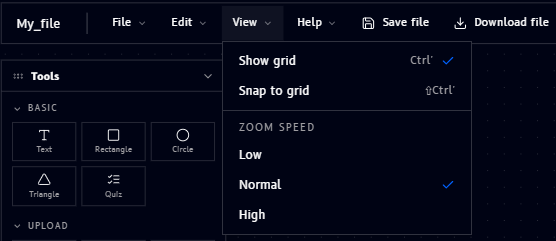
- Show grid (Ctrl
') - toggle the dotted background grid on/off - Snap to grid (⇧Ctrl
') - snap items to the grid as you move them - Zoom speed - set scroll-to-zoom sensitivity to Low, Normal, or High