Tools panel
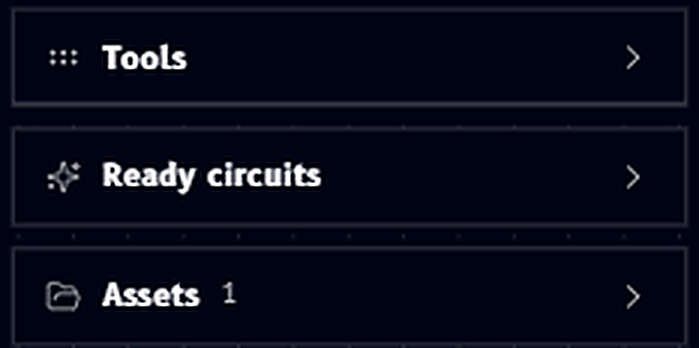
The Tools panel sits on the left side of the canvas and holds everything you can drag onto your workspace, grouped into three collapsible sections: Tools, Ready circuits, and Assets:
Expanding Tools reveals three categories, Basic, Upload, and Quantum:
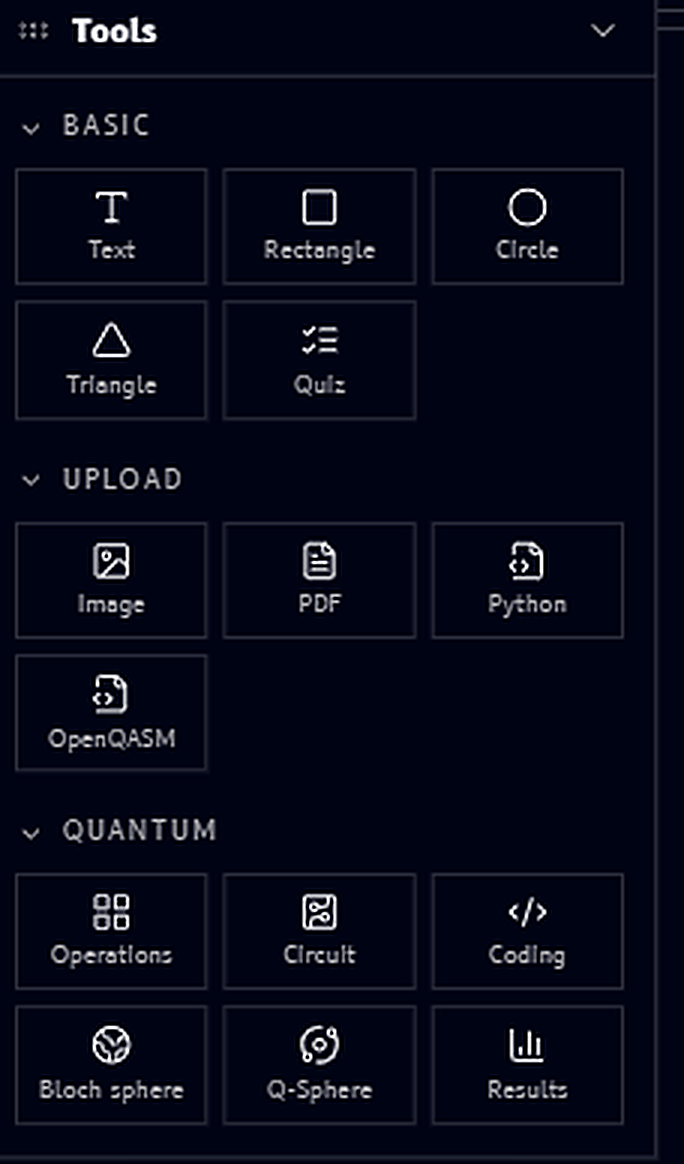
Basic
Simple shapes and text for sketching layouts or annotating a canvas:
- Text - a text label with its own rich formatting toolbar, see Text
- Rectangle, Circle, Triangle - basic shapes with a fill/stroke/opacity toolbar, see Shapes
- Quiz - an embeddable multiple-choice question block, see Quiz
Upload
Bring outside files onto the canvas, see Upload blocks:
- Image - image files
- PDF - PDF documents
- Python - Python scripts
- OpenQASM - OpenQASM files
Quantum
The quantum-specific building blocks that make Qanvas more than a plain whiteboard:
- Operations - a gate catalog block, see Operations
- Circuit - a circuit-building block with quantum and classical registers, see Circuit
- Coding - shows a circuit's code, see Coding
- Bloch sphere - a per-qubit Bloch sphere visualization, see Bloch sphere
- Q-Sphere - a Q-Sphere visualization, see Q-Sphere
- Results - a results/output block, see Results
Ready circuits
Below the Tools categories, Ready circuits is its own collapsible section holding a library of prebuilt circuits you can drop directly onto the canvas, see Ready circuits.
Assets
Assets lists everything you've uploaded or saved into the current workspace, with a count next to the section title, so you can reuse a file you've already added without uploading it again, see Assets.