Certificate
The Certificate card sits at the bottom of the progress panel, directly below "Track your progress."
- A lock icon and the card's title, Certificate, appear above a preview of the certificate itself
- While you haven't met the requirement, that preview is shown blurred out, so you can see roughly what a certificate looks like without being able to read or use it
- Underneath, a caption explains exactly what's needed: "Complete all modules with an average grade of 70% or higher to unlock your certificate."
Unlocking it
The certificate is tied to your overall standing across the whole QCAP track, the same numbers summarized at the top of the progress panel:
- All modules complete - every module in the sidebar list,
HistorythroughFuture, needs to be finished, not just started - Average grade of 70% or higher - based on the graded items shown on the Grades page, weighted the same way as your overall grade there
Until both conditions are true, the card stays locked. Once they are, the blur lifts and the certificate becomes available.
What you get
Once unlocked, the card lets you download an actual PDF, a Certificate of Completion, and gives anyone else a way to verify it:
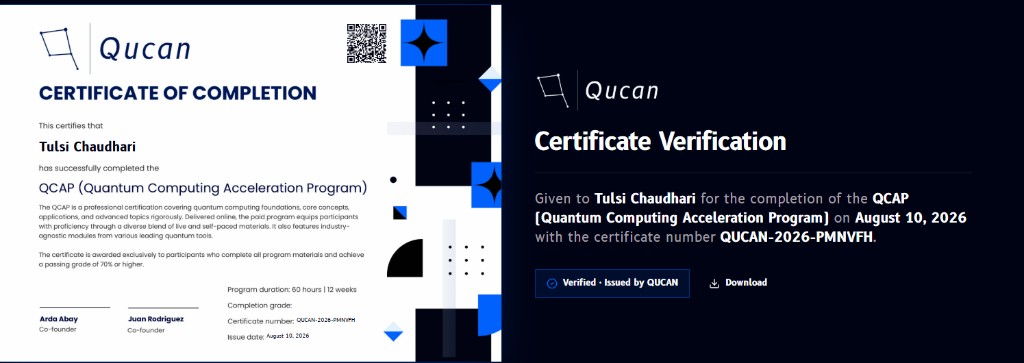
- Certificate of Completion (left) - a Qucan-branded PDF certifying that you've completed the QCAP (Quantum Computing Acceleration Program), described on the certificate itself as a professional certification covering quantum computing foundations, core concepts, applications, and advanced topics, delivered online through a mix of live and self-paced material with industry-agnostic modules. It lists the program duration (60 hours, 12 weeks), your completion grade, a unique certificate number (formatted
QUCAN-<year>-<code>, for exampleQUCAN-2026-PMNVFH), the issue date, and is signed by Qucan's co-founders, Arda Abay and Juan Rodriguez. - A QR code printed on the PDF links straight to that certificate's verification page.
- Certificate Verification (right) - the page the QR code (or a direct link) opens. It repeats who the certificate was given to, the program, the completion date, and the certificate number, alongside a Verified - Issued by QUCAN badge and its own Download button to get the PDF again.
Note
Because every certificate number is unique, the verification page also works as a way for someone else, an employer, for instance, to confirm a certificate is genuine without needing to log in to QCAP.