Upload blocks
Four block types under Upload bring outside files onto the canvas: Image, PDF, Python, and OpenQASM. Each starts as an empty drop zone you drop a file onto (or, for Python and OpenQASM, write directly), and can be expanded to a fullscreen view.
Image
An empty Image block prompts you to drop or choose a file:
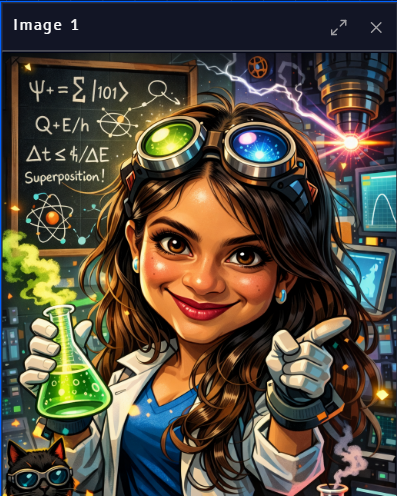
Once uploaded, the image renders directly in the block:
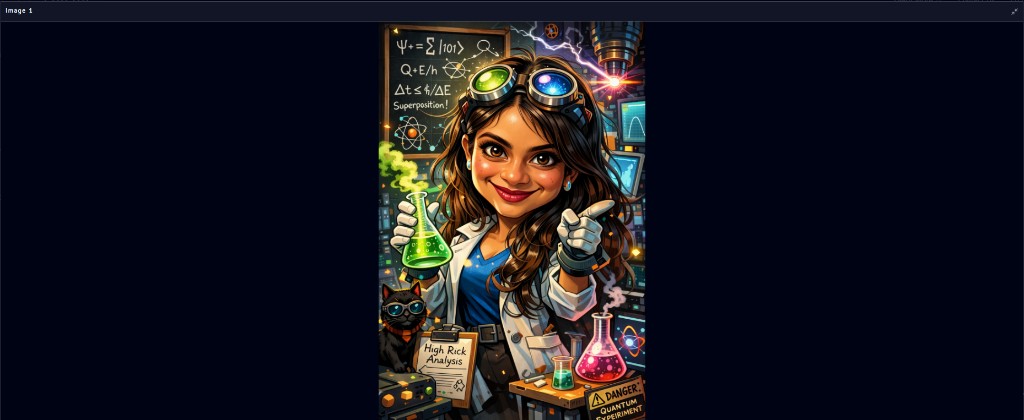
Click the expand icon (top right of the block) to view the image fullscreen:
PDF
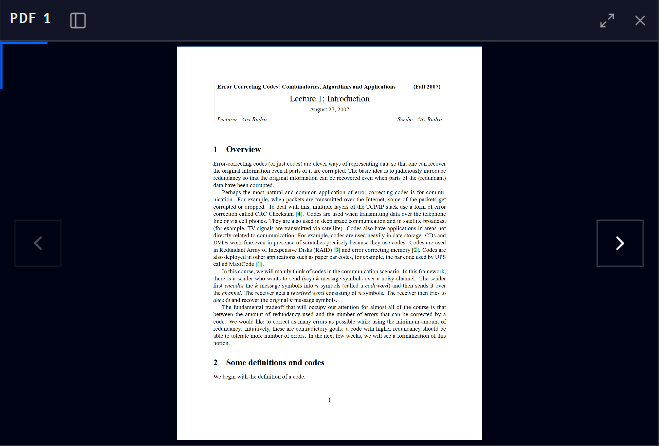
A PDF block shows the document in a paginated viewer, with arrows on either side to move between pages:
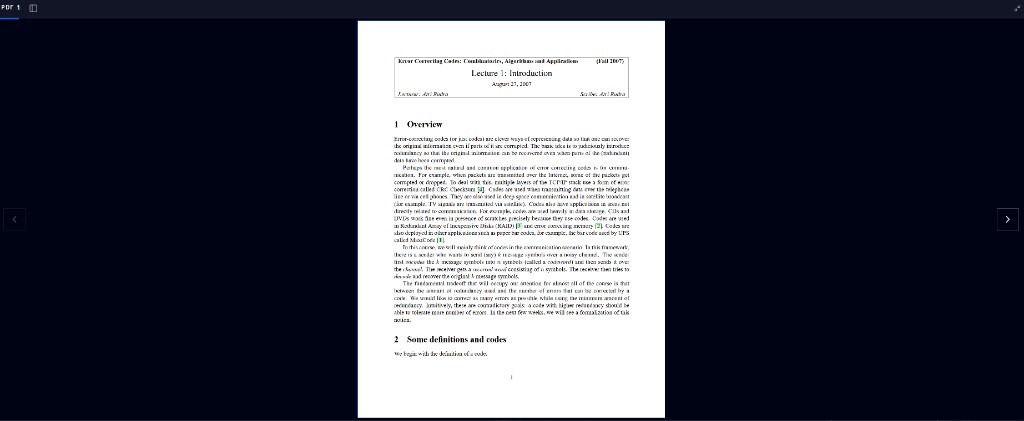
Click the expand icon (top left of the block) to view the PDF fullscreen, with the same page navigation:
Python
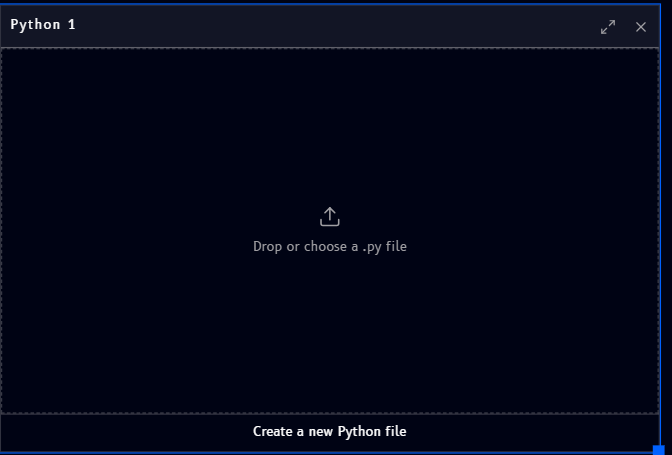
An empty Python block lets you either upload an existing .py file, or click Create a new Python file to start writing one directly on the canvas:
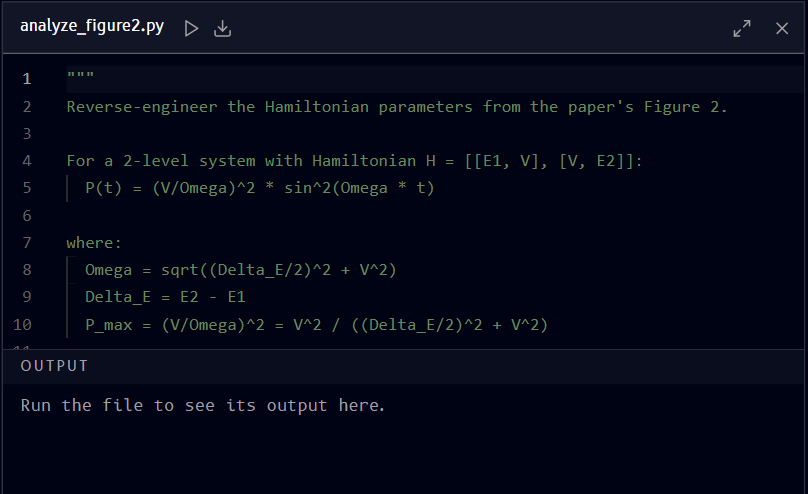
Once it has code, the block's header shows a filename, a Run button, and a Download icon, with an Output panel underneath:
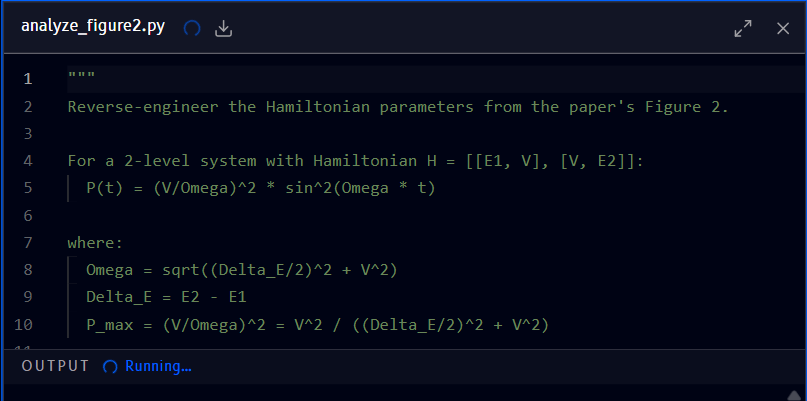
Clicking Run shows a spinner while the code executes:
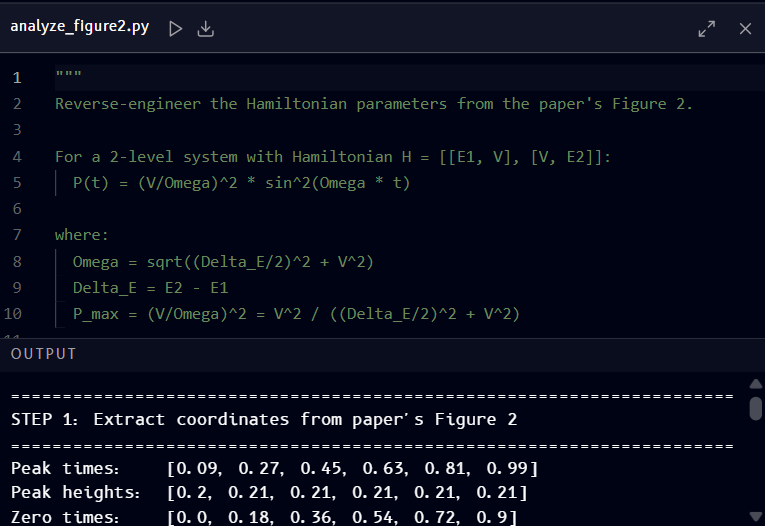
Once it finishes, Output fills in with whatever the script printed:
Renaming
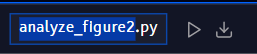
Click the filename to rename it, the same editable-field pattern used to rename the workspace itself:
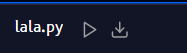
A Python block after being renamed:
Downloading
Click the download icon in the header to download the block's code as a .py file.
OpenQASM
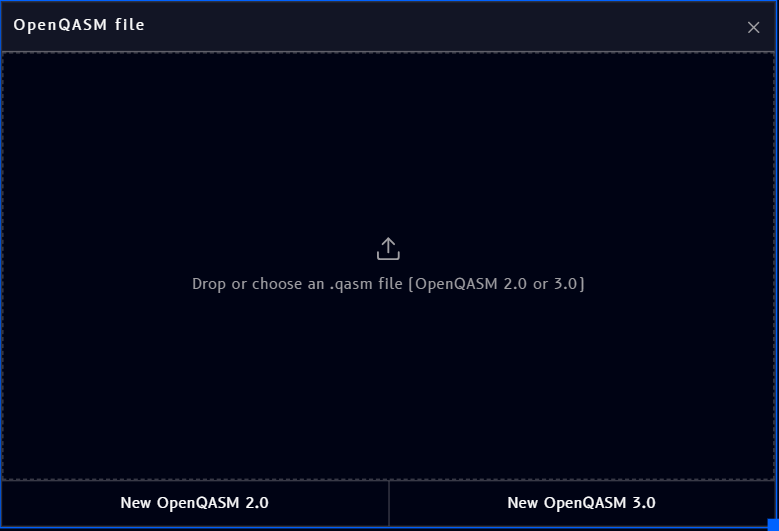
An empty OpenQASM file block lets you either upload an existing .qasm file, or create a new one, choosing between OpenQASM 2.0 and 3.0:
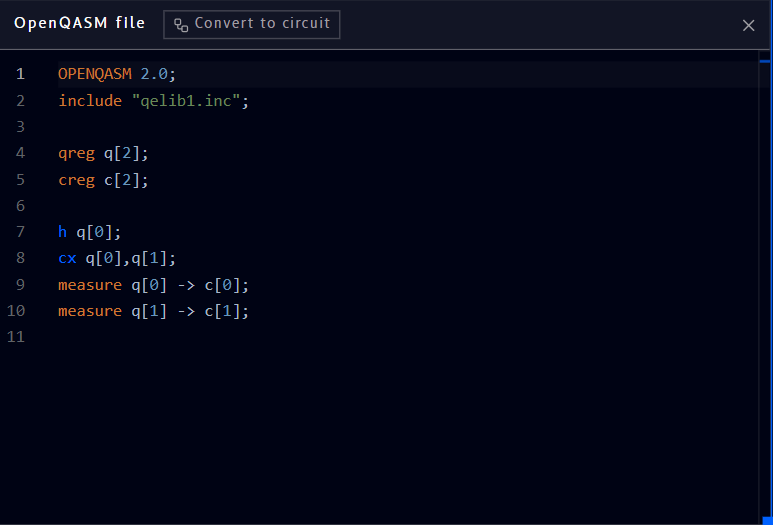
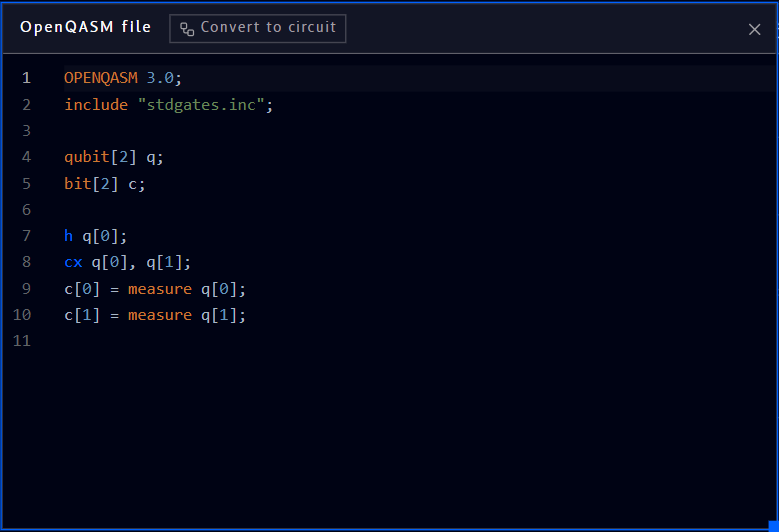
Creating a new file starts you off with a minimal Bell-state program, ready to edit, in the version you picked:
Converting to a circuit
Click Convert to circuit (top of the block) to turn the code into an editable Circuit block on the same canvas: