Tour of Qanvas
When you open Qanvas, you land on an empty workspace. The interface is split into a few main regions:
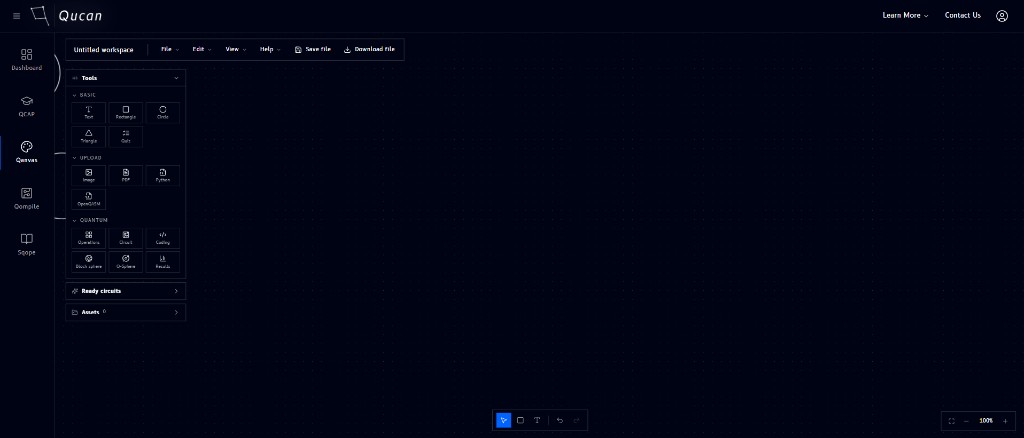
| # | Region | What it's for |
|---|---|---|
| 1 | Top bar | Workspace name, File / Edit / View / Help menus, and Save file / Download file buttons |
| 2 | Module sidebar (far left) | Switch between Dashboard, QCAP, Qanvas, Qompile, and Sqope |
| 3 | Tools panel | Browse and drag basic shapes, uploads, and quantum blocks onto the canvas |
| 4 | Ready circuits | A library of prebuilt circuits you can drop onto the canvas |
| 5 | Assets | Files you've uploaded into this workspace |
| 6 | Canvas (center) | The infinite workspace where everything you place gets arranged |
| 7 | Zoom controls (bottom right) | Fit to screen, zoom out, current zoom level, zoom in |
The next sections walk through each of these in depth, starting with the Tools panel.