Tour of QCAP
QCAP's interface has a left icon rail, a sidebar, a main content area, and a right-hand progress panel:
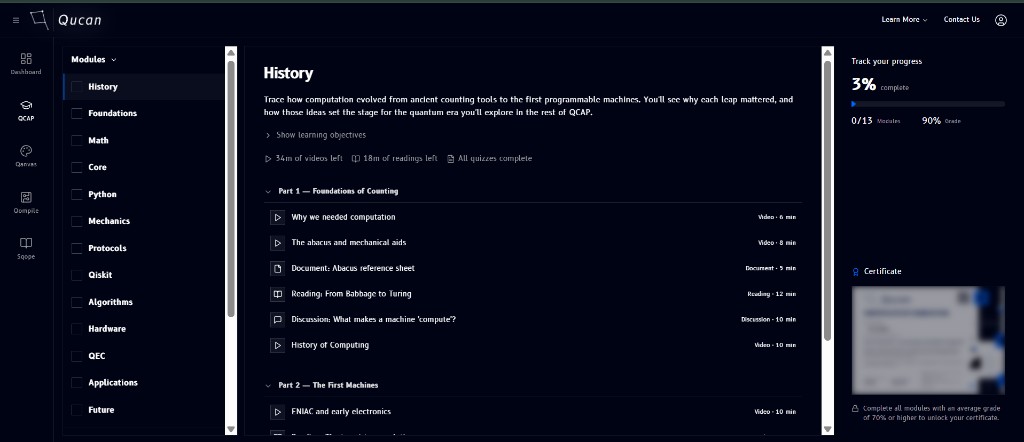
Icon rail
The narrow strip on the far left (Dashboard, QCAP, Qanvas, Qompile, Sqope) is the same module switcher used across the whole platform, not specific to QCAP.
Sidebar
Next to the icon rail, the QCAP sidebar has two parts:
- Modules - the full list of modules, in order:
History,Foundations,Math,Core,Python,Mechanics,Protocols,Qiskit,Algorithms,Hardware,QEC,Applications,Future. Clicking one loads its page in the main content area, see Modules. - A second row of links to course-wide sections rather than a specific module: Live Sessions, Grades, Announcements, Discussions Forum, Classmates, and Resources.
Main content area
Selecting a module shows its page, description, learning objectives, progress, and lessons grouped into Parts. See Modules for how that page is laid out.
Progress panel
To the right, Track your progress summarizes your standing across the whole track: an overall completion percentage, how many of the 13 modules you've finished, and your average grade. Below it, a Certificate card stays locked (shown blurred) until you complete every module with an average grade of 70% or higher, see Certificate.