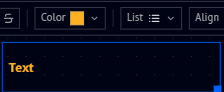
Text
Text (found under Basic in the Tools panel) places an editable text box on the canvas. Selecting it and clicking (or dragging) onto the canvas creates a text box with a floating formatting toolbar above it:
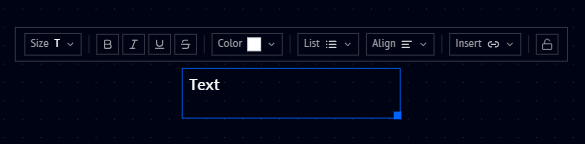
From left to right, the toolbar offers:
| Icon | What it does |
|---|---|
| Size | Choose a heading level or body/small text size |
| B / I / U / S | Bold, Italic, Underline, Strikethrough |
| Color | Set the text color |
| List | Turn the paragraph into a bullet or ordered list |
| Align | Left, center, or right align the text |
| Insert | Insert a link or a LaTeX equation |
| Lock icon | Lock the text box in place on the canvas |
Size
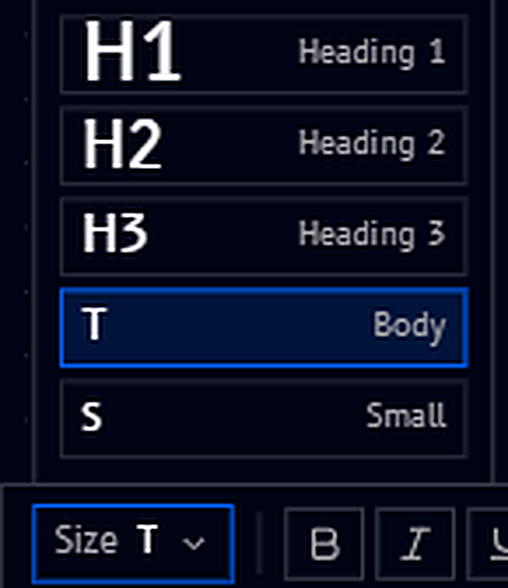
Five presets are available:
- H1, H2, H3 - heading levels, largest to smallest
- T Body - the default paragraph size
- S Small - a smaller, secondary text size
Color
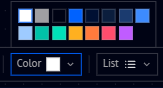
Pick from a palette of preset colors, including plain white, to make specific text (or a whole list) stand out.
List
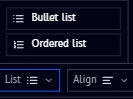
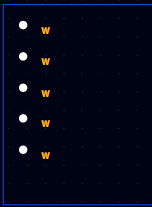
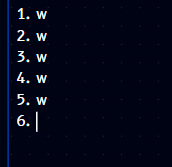
Turn the current paragraph into a Bullet list or an Ordered list. Pressing Enter continues the list on a new line, so you can keep adding items without reselecting the option:
Align
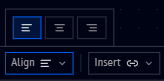
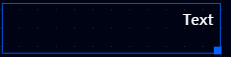
Align the text box's content left (the default, shown in the toolbar screenshot above), center, or right:

Insert
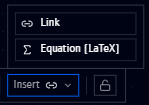
- Link - insert a hyperlink
- Equation (LaTeX) - insert a mathematical equation written in LaTeX, useful for annotating a circuit with the math behind it directly on the canvas
Example
Combining color with the Size and other options lets you build annotated, styled notes right next to your circuits and code: